
Sparkrock Ed HRP version 5.2.38.0 release notes
Published: September 19, 2025
This article provides an overview of the new and updated features, resolved problems, and general information about Ed HRP version 5.2.38.0. All Ed HRP releases are cumulative.
Video
Highlights
The following list highlights the major accomplishments in this release.
New features and changes
Version 5.2.38.0 introduces new features and enhancements to existing functionality.
Board level absence approval enhancements
To improve efficiency, this release introduces several board level absence approval enhancements.
Absence Details page changes
To improve the absence approval workflow, this release adds approve and reject functionality to the Absence Details page.

Supervisors can now approve or reject absences immediately for entered and submitted absences.
When you choose Approve, Sparkrock Ed HRP displays a Change status to Approve dialog box where you can enter notes.
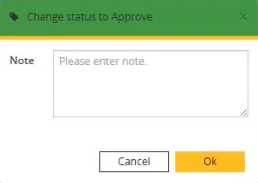
After you choose OK, Sparkrock Ed HRP changes the Status of the absence to Approved.
When you choose Reject, Sparkrock Ed HRP displays a Change status to Reject dialog box where you can enter notes.
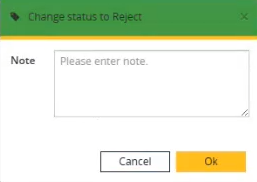
After you choose OK, Sparkrock Ed HRP changes the Status of the absence to Rejected.
Board Absence Approval Group Actions changes
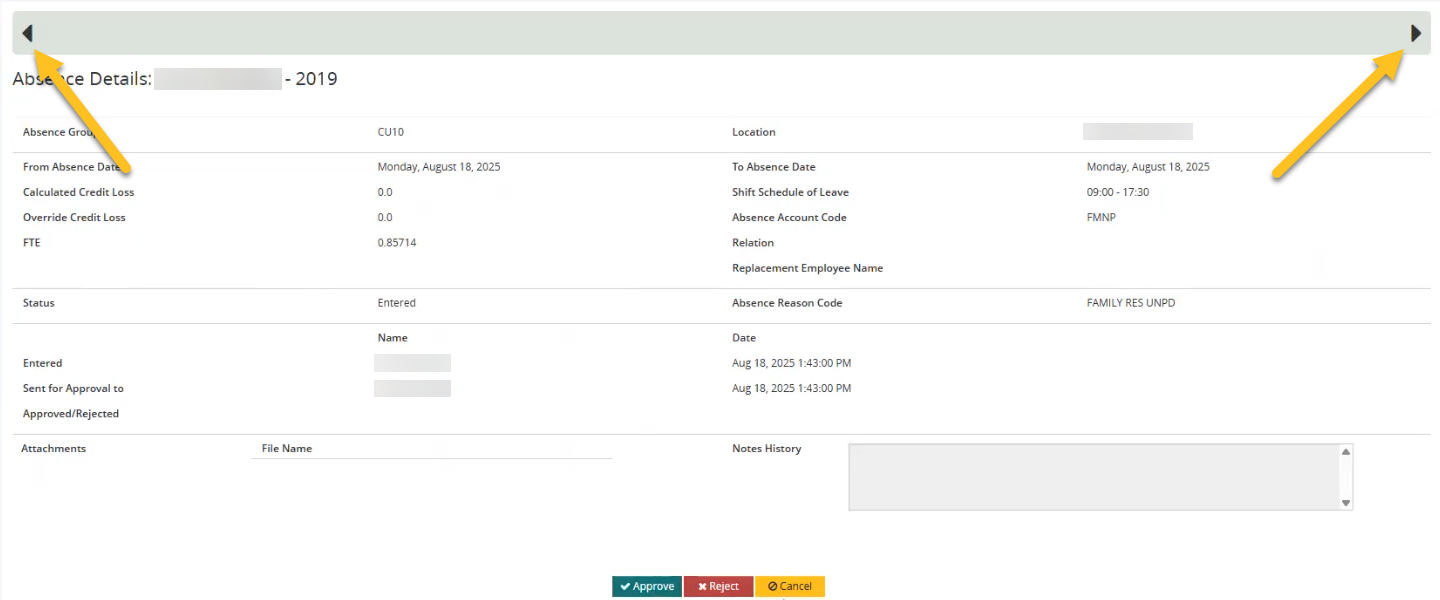
Starting with this release, if you select multiple absence requests, and then choose the View group action, the Absence Details page now displays arrows that you can use to move between requests.
Board Absence Approval page employee name links
To improve navigation, this release adds links in the Employee column on the Board Absence Approval page.
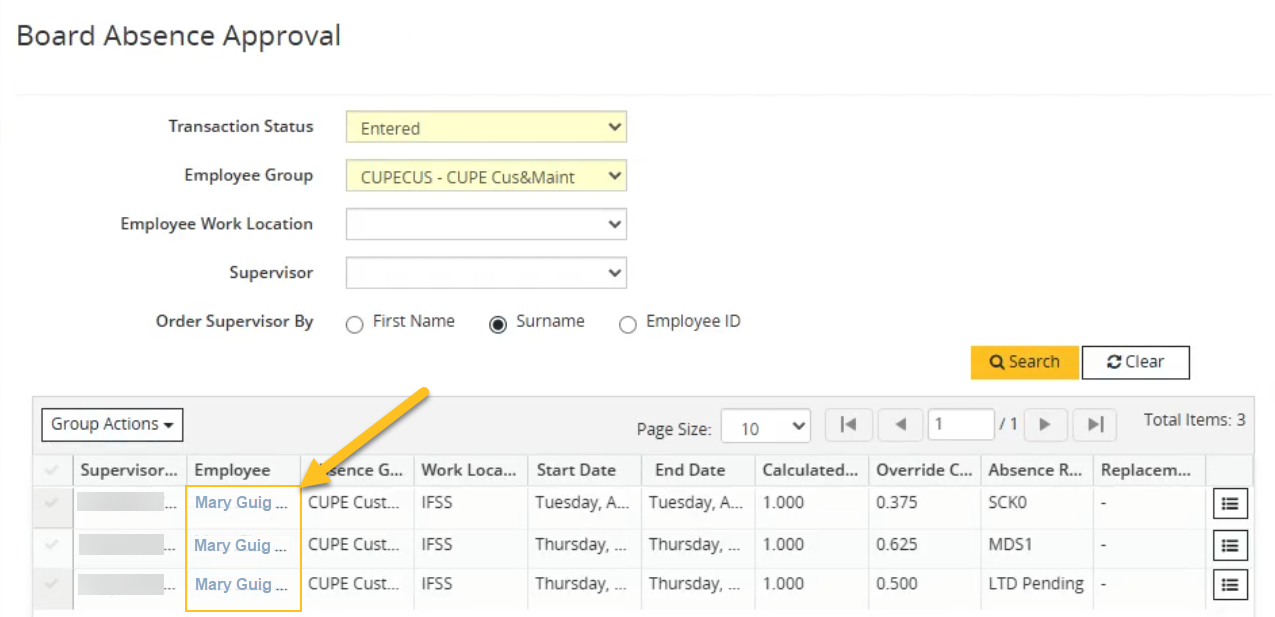
When you select a link, Sparkrock Ed HRP opens the respective Absence Details page.
Absences entered through board entry are now automatically approved
To reduce administrative workload and eliminate approval delays for board-entered absences, this release introduces automatic approval functionality for board-entered absences while maintaining audit traceability. Before this release, board-entered absences used the same approval routing process as self-entered absences. Because staff pre-validate board-entered absences, these absences do not require supervisor approval.
To support this feature, this release adds a Save & Approve button on the Board Employee Absence Entry page.
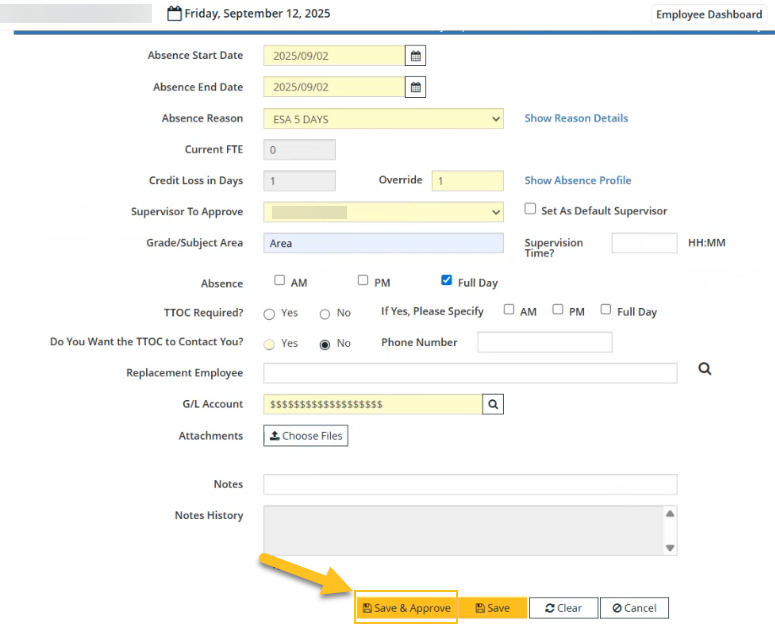
When you choose the Save & Approve button, Sparkrock Ed HRP displays a confirmation dialog box that displays the following text:
You are about to save and approve this absence. This action cannot be undone. Do you wish to continue?
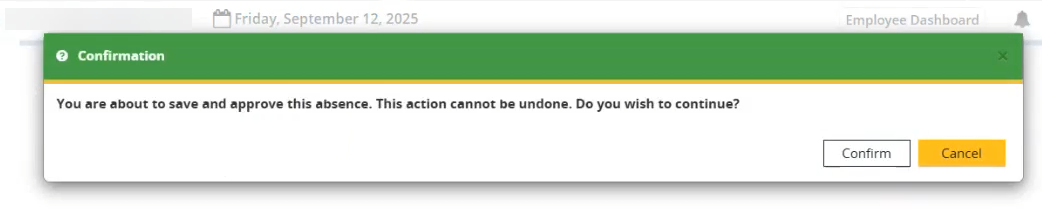
To automatically approve the absence request, you must choose Confirm.
After you choose Confirm, Sparkrock Ed HRP displays a Change status to Approve dialog box where you can enter notes.
After you choose OK, Sparkrock Ed HRP changes the Status of the absence to Approved.
Employment Data & Analysis System (EDAS) reporting
In British Columbia, Canada, the Employment Data and Analysis System (EDAS) collects employment data from the public school system. To support EDAS reporting requirements, this release introduces the capability for you to create an EDAS report export directly from Ed HRP.
The following sections include information about the enhancements that were introduced in this release to support this feature.
Miscellaneous Codes Maintenance changes
To support the EDAS reporting functionality, on the Miscellaneous Codes Maintenance page, there is an EDAS leave type that includes all of the leave types that are necessary to meet EDAS requirements.
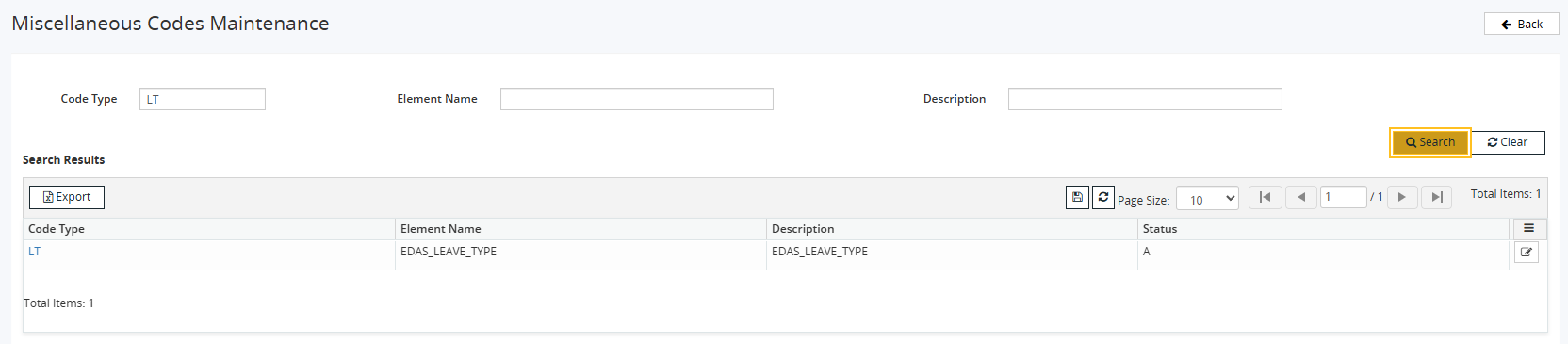
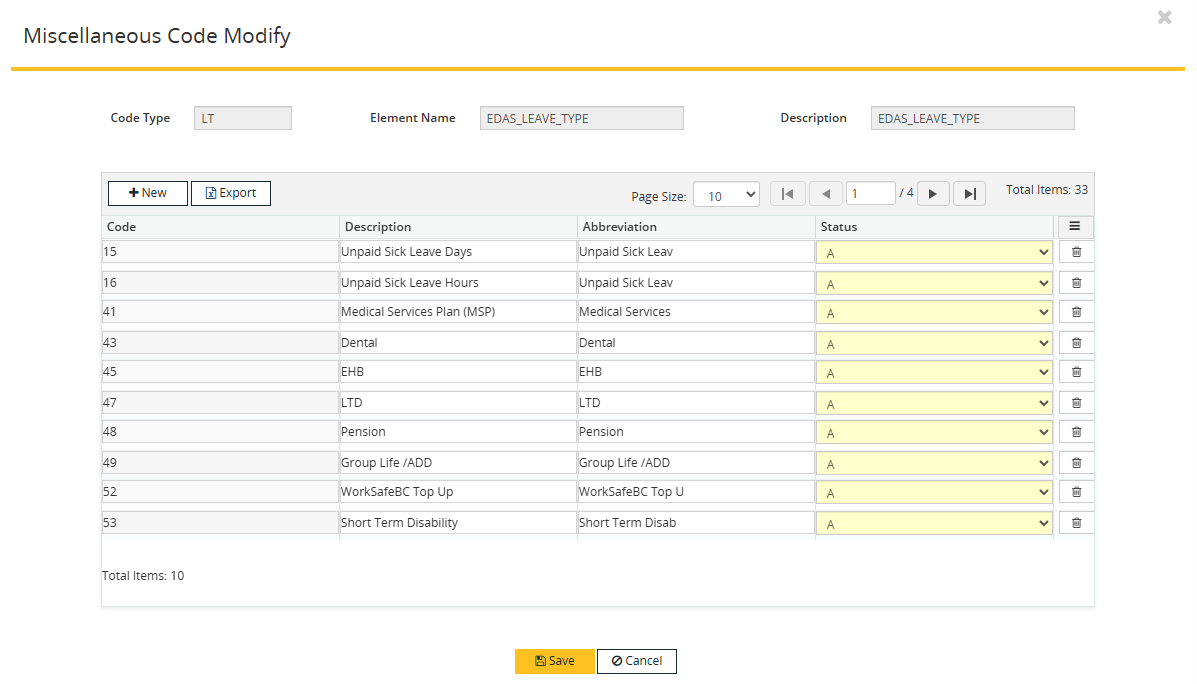
To learn more, go to EDAS leave types.
EDAS Setup changes
To support the EDAS reporting functionality, this release introduces changes to the EDAS Setup page.
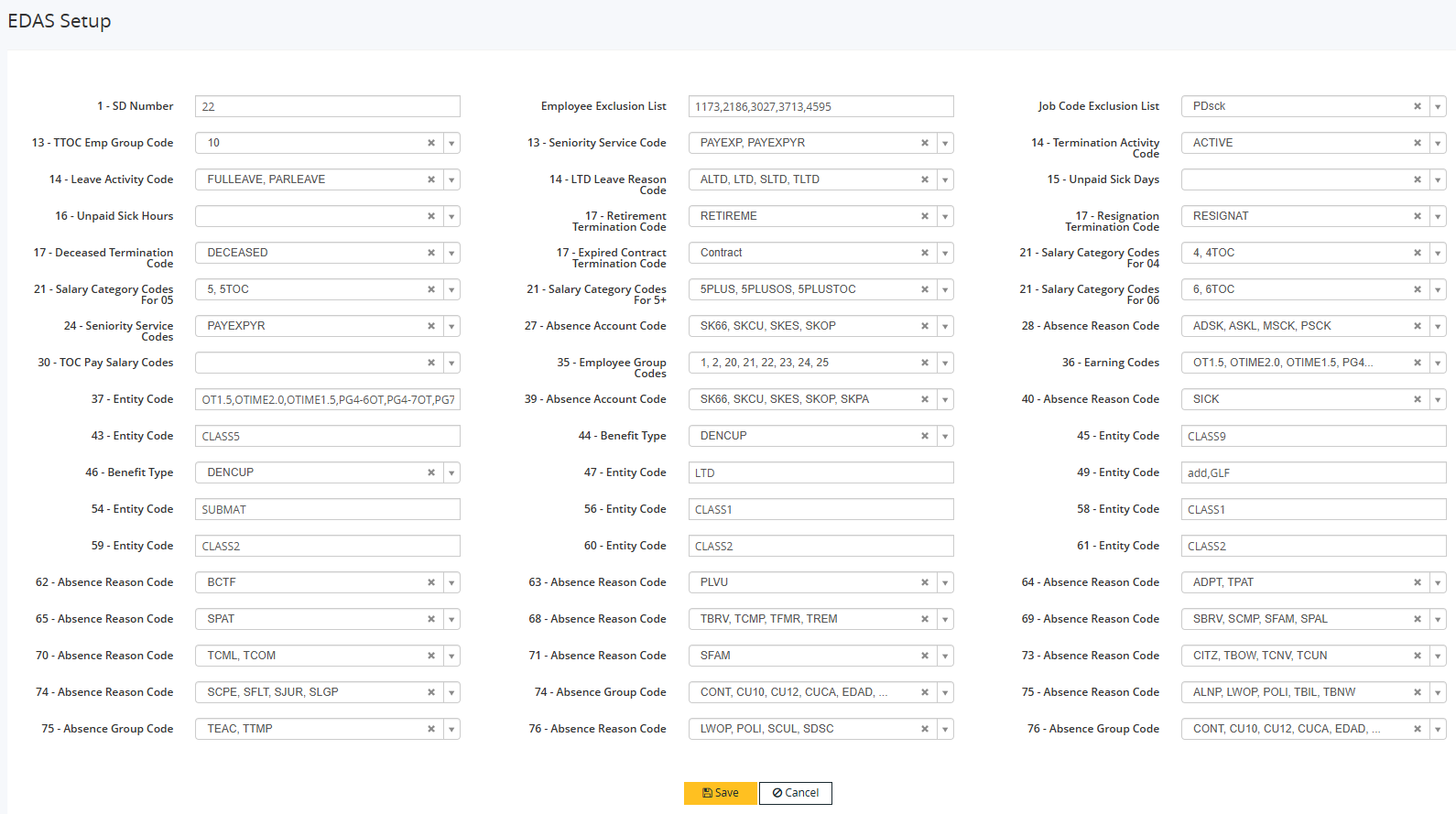
The EDAS Setup page includes fields that you can update to configure the data that appears in the EDAS report.
New in this release is the Employee Exclusions List field. In the Employee Exclusions List field, you can specify a list of employee IDs for which data is to be excluded from the EDAS report.
To learn more, go to EDAS Setup.
Generate EDAS Data Sheet page
To support the EDAS reporting functionality, this release introduces changes to the Generate EDAS Data Sheet page.
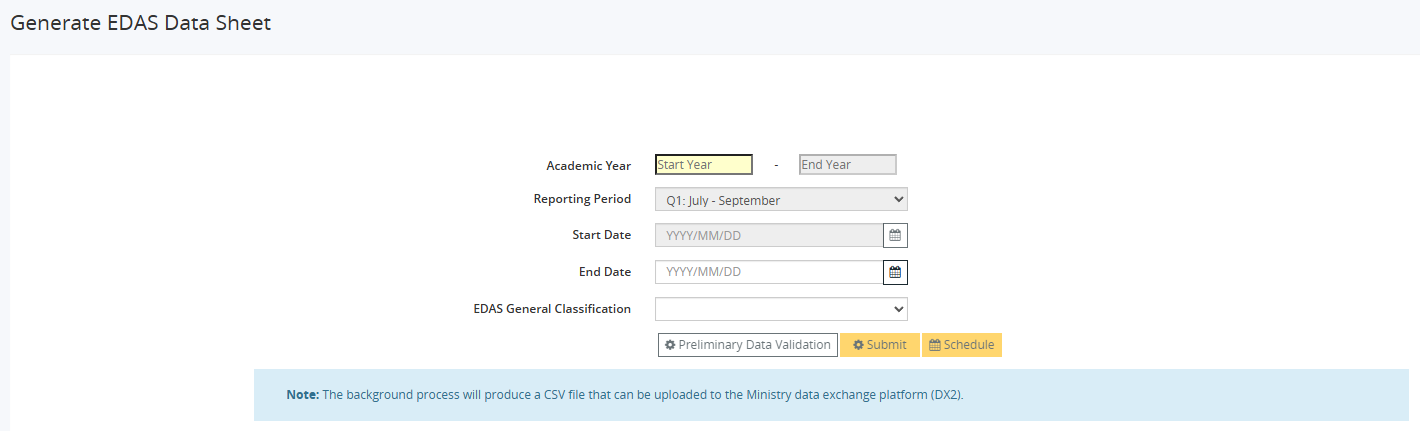
On the Generate EDAS Data Sheet page, before generating the EDAS report, you can run a preliminary data validation to capture errors related to formatting.

After you have corrected any errors, you can submit a background process that generates the EDAS report in a .csv format.
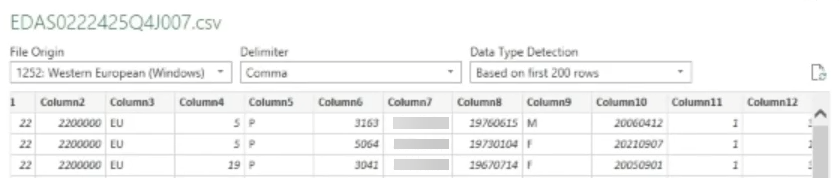
Ed HRP creates the EDAS .csv file with the following naming format:
EDAS<SchoolDistrictNumber><SchoolYear><Quarter>J<Sequence>.csv
For example, EDAS0222425Q1J001.csv
The file can be uploaded to the ministry data exchange platform (DX2).
To learn more, go to EDAS Reporting.
Problems that are resolved in this update
The following problems are resolved in this release.
| Description | |
|---|---|
| The Location report generates blank output and is unnecessary because the report includes the same information as the Position report. To resolve this problem, remove the Location report from the Inquiry Reports page menu. |
|
| When exporting an inquiry report to Excel, the column headers don't align with the column data. |
|
| The Pay Run Debug report incorrectly displays CPP1 deduction has reached MAX in this pay... instead of CPP1 deduction has reached MAX in the prior pay.... |
|
| On the Employee Absence Transaction Entry - Modify page, you can't sort data by the Error Flag column. |
Feedback
To send feedback about this page, select the following link: