
Sparkrock Ed HRP version 5.2.36.0 release notes
Published: August 22, 2025
This article provides an overview of the new and updated features, resolved problems, and general information about Ed HRP version 5.2.36.0. All Ed HRP releases are cumulative.
Video
Highlights
The following list highlights the major accomplishments in this release.
New features and changes
Version 5.2.36.0 introduces new features and enhancements to existing functionality.
New application health checks
This release introduces new application health checks to monitor the status of Ed HRP. These checks improve reliability and help ensure that database operations and services are functioning as expected.
Enhanced absence notifications for supervisors
This release introduces an enhanced notification system to alert supervisors of pending absence requests. Notifications are delivered by email and through the Ed HRP notification system, also known as bell notifications.
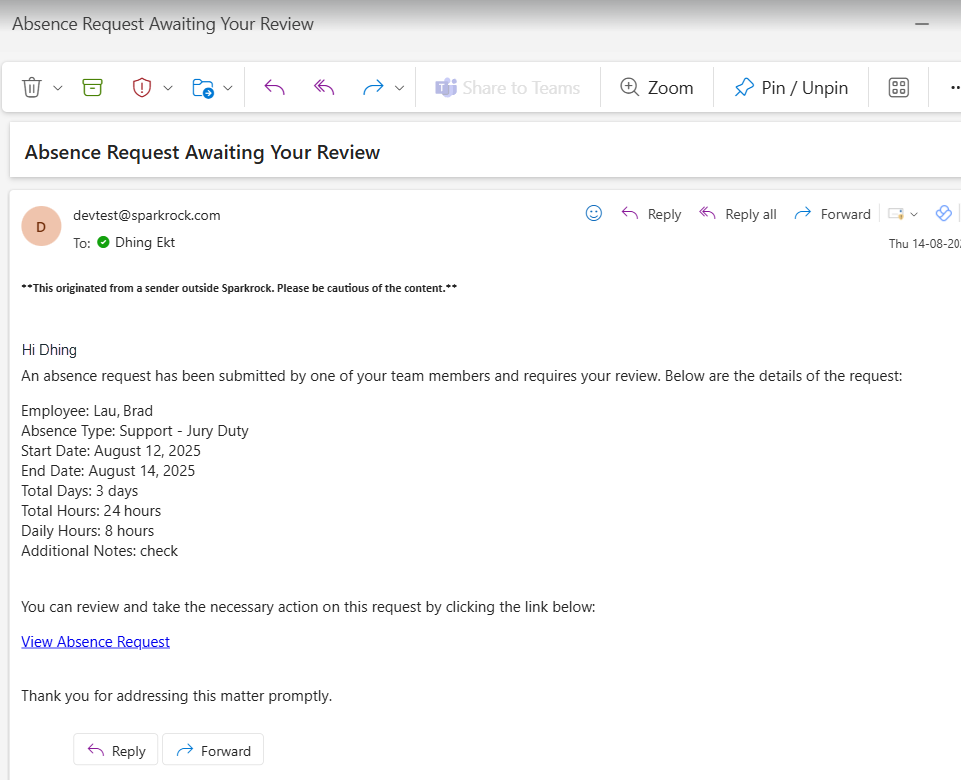
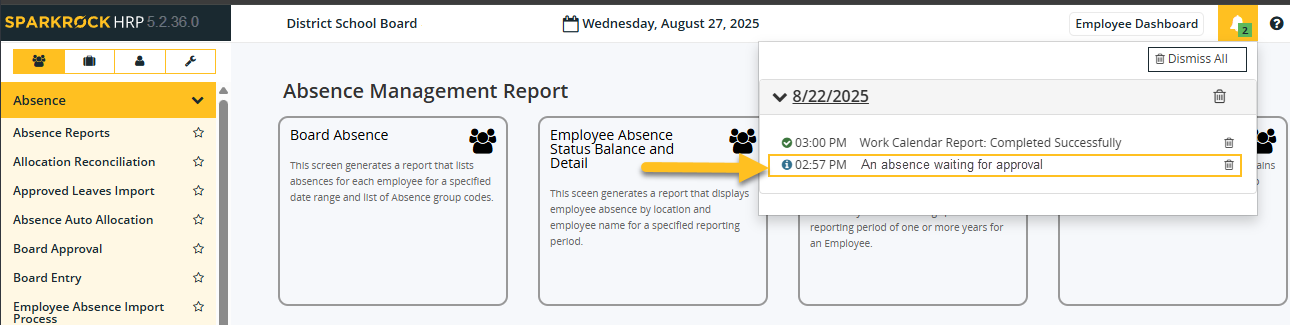
With this feature, supervisors can manage absence approvals more proactively, improving responsiveness and efficiency.
Benefits of this feature:
Timely Alerts: Supervisors are promptly informed when new absence requests are logged.
Direct Access: Notifications include links that supervisors can select to review and act on requests.
Efficiency: Reduces delays in reviewing and approving absences, ensuring a more streamlined workflow.
Reliability: Decreases the chance of missed or overlooked absence requests.
Only supervisors who are authorized for the employee's employee group and location code as defined in the absence entry receive these notification.
In email notifications, Sparkrock Ed HRP uses the supervisor's email address that is specified on the Employee Spotlight page, in the Employee Information section, on the Address & Contact tab.
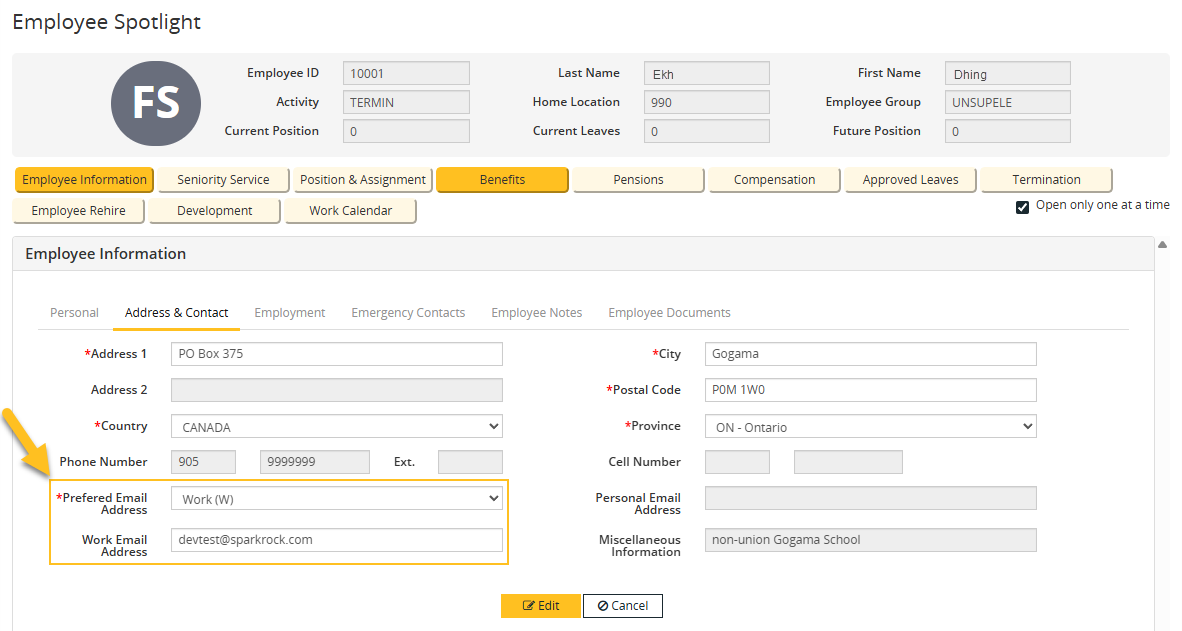
If there are any problems with the SMTP setup or email address, the supervisor continues to receive a bell notification.
Ed HRP removes the bell notification when the supervisor performs the following actions:
- Selects the link in the notification and views the absence.
- Approves or rejects the absence through any workflow.
Setup
To use this feature, you must complete the following setup.
Configure SMTP settings
To have Ed HRP send emails, you must configure SMTP settings.
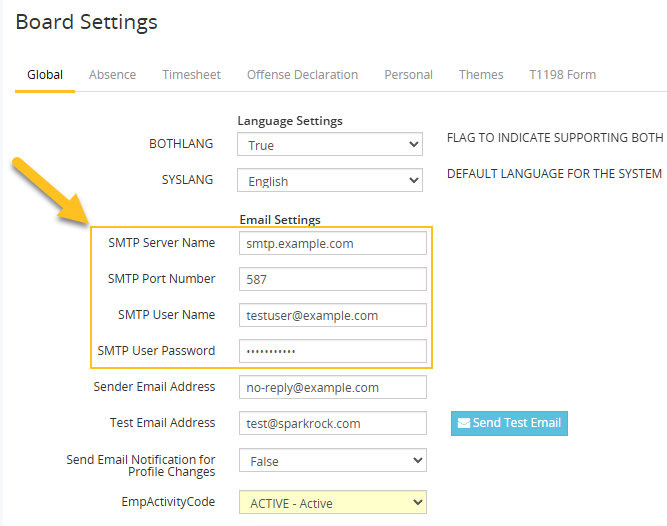
To configure SMTP settings
On the System tab, in the left menu, choose Settings > Board.
The Board Settings page opens.
On the Global tab, configure the SMTP fields.
To save your changes, choose Save.
Enable supervisor absence notifications
To have Ed HRP send absence notifications to supervisors, you must enable supervisor absence notifications.
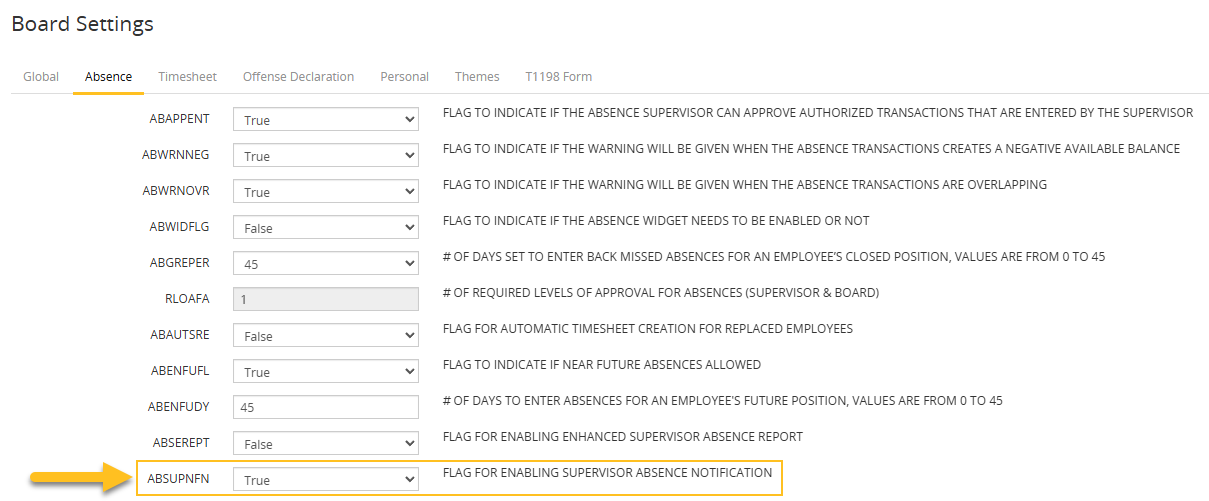
When you enable supervisor absence notifications, Sparkrock Ed HRP performs the following actions:
- Sends an email to the supervisor after an employee submits an absence request that has a Status of Entered.
- Adds a bell notification for the supervisor.
To enable supervisor absence notifications
On the System tab, in the left menu, choose Settings > Board.
The Board Settings page opens.
On the Absence tab, set ABSUPNFN to True (Flag for enabling supervisor absence notification).
To save your changes, choose Save.
HRP-573, HRP-358, HRP-357, HRP-356
Problems that are resolved in this update
The following problems are resolved in this release.
| Description | |
|---|---|
| When you try to add a position or compensation record for a future rehire, Sparkrock Ed HRP incorrectly displays an error message because the rehire date is not considered in the validation logic. |
|
| The Tax Analyzer report displays incorrect CPP data. The label shows Maximum CPP instead of Maximum Base CPP, and the Federal K2 calculation does not use the base rate. |
|
| When you change the application language to French (FR), some labels on the Entitlement page are not translated. |
|
| When you change the application language to French (FR), labels on the Add New Employee Wizard page are not translated. |
|
| On the Schedule Groups page, when you specify an option for the Indicator field that is located under Indicator Multiple Selection, and then choose Select, Sparkrock Ed HRP does not perform a mass update of the Indicator field for all records. |
|
| On the Days Not Paid Entry page, the New button remains disabled when a negative amount is entered because of a field validation issue. Also, Sparkrock Ed HRP does not prevent you from editing records for a processed pay period. |
|
| The Occurrence? field caption on the Absence Account - Modify and Modify Absence Group pages has a spelling mistake. The caption displays Occurence? instead of Occurrence?. |
|
| On the Employee Spotlight page, on the Employee Rehire tab, the Save button remains disabled when a valid Rehire Date is specified. Also, when a Rehire Date is selected with the date picker, and then changed to a later date, Sparkrock Ed HRP saves the original date instead of the most recent date. |
Feedback
To send feedback about this page, select the following link: